

Squarespace
Help Docs
Topics:
Welcome to the Brightbolt Help Docs page!
The purpose of this page is to provide you with step-by-step instructions for making basic edits to your Squarespace website. You can use the topic links to the left (or above, if you’re viewing this on a mobile device) to jump to the topic of your choice.
If you need support outside of the topics on this page, please contact me at brandon@brightbolt.design, and I’ll be happy to help!
How to Log In
STEPS
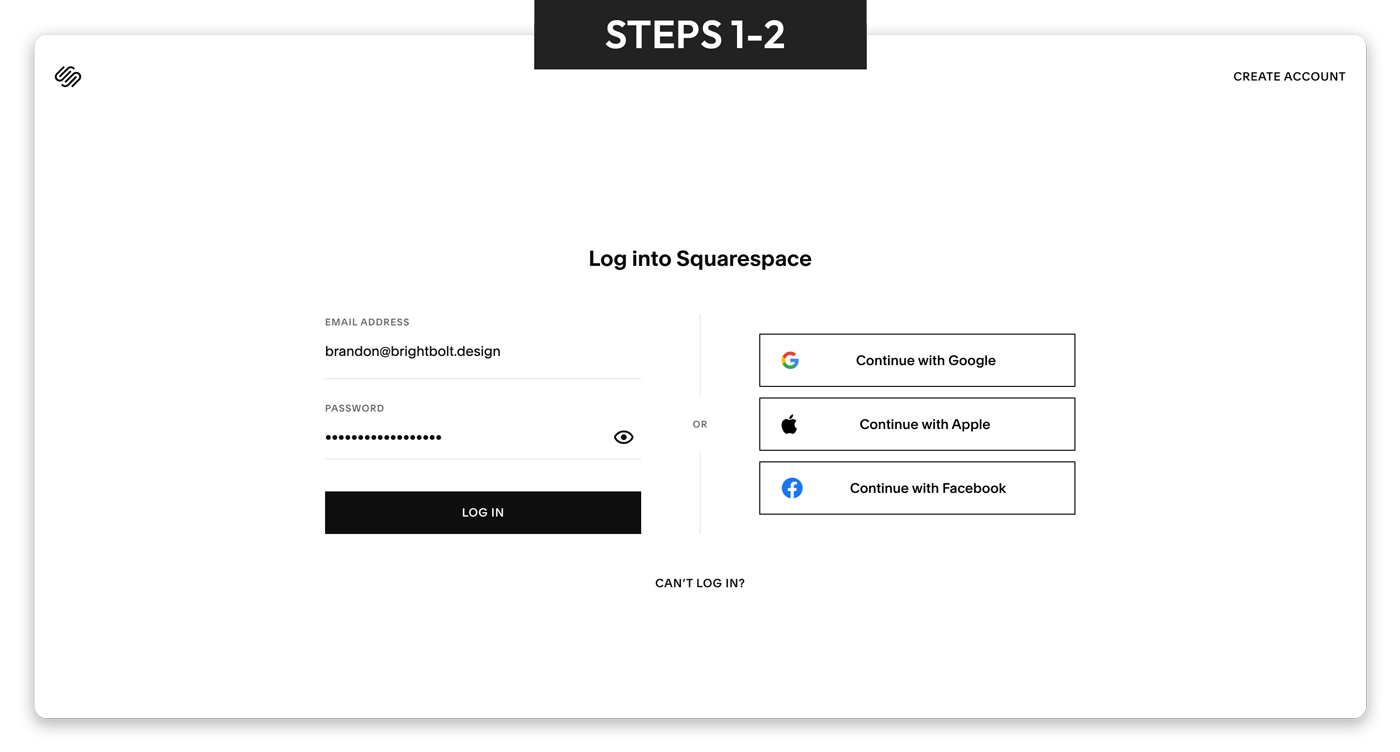
Open your web browser and go to the Squarespace login page.
Enter the email address and password connected to your Squarespace account, and click Log In.
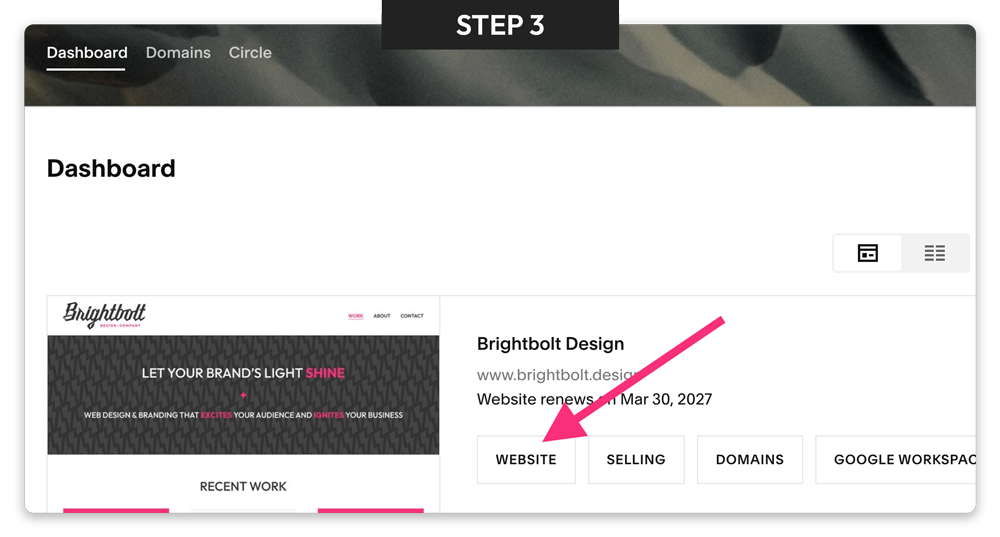
Note: If you created your account with a connected Google, Apple, or Facebook account, choose the appropriate button to login that way instead.If you have more than one website in your account, click the website you want to work on.
Once inside your site dashboard, you are ready to begin editing.
TROUBLESHOOTING
Issue: I forgot my password.
Solution: Click the “Can’t Log In?” link on the login screen and follow the prompts to reset it.
Issue: I can’t find my website after logging in.
Solution: Make sure you are using the correct email address. Some users have more than one Squarespace account.

Edit Your Site Pages
STEPS
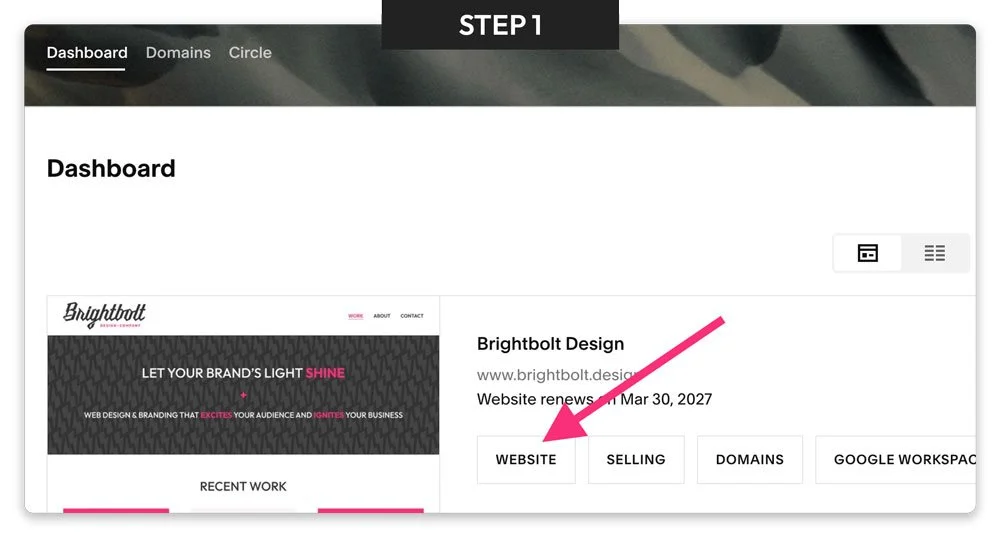
Log in to Squarespace and open your website dashboard.
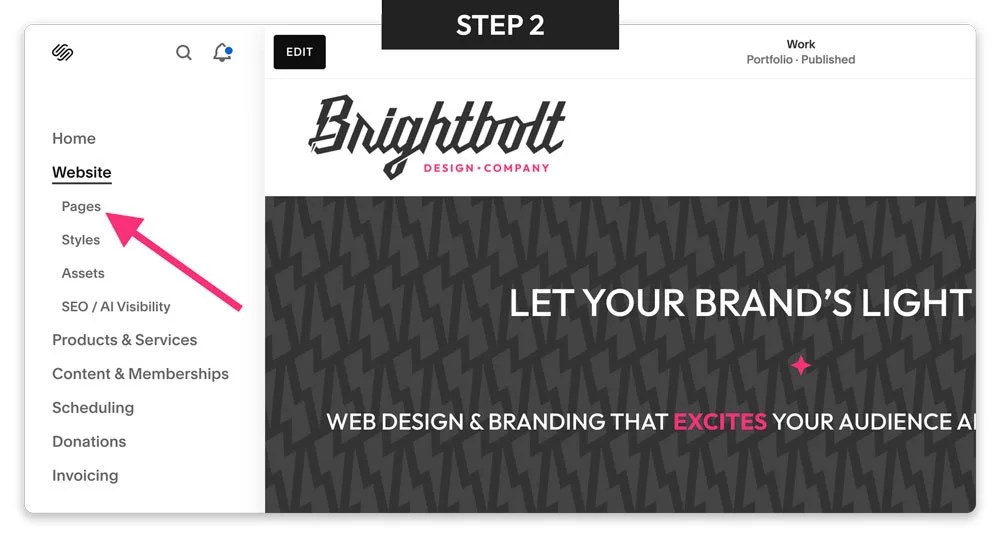
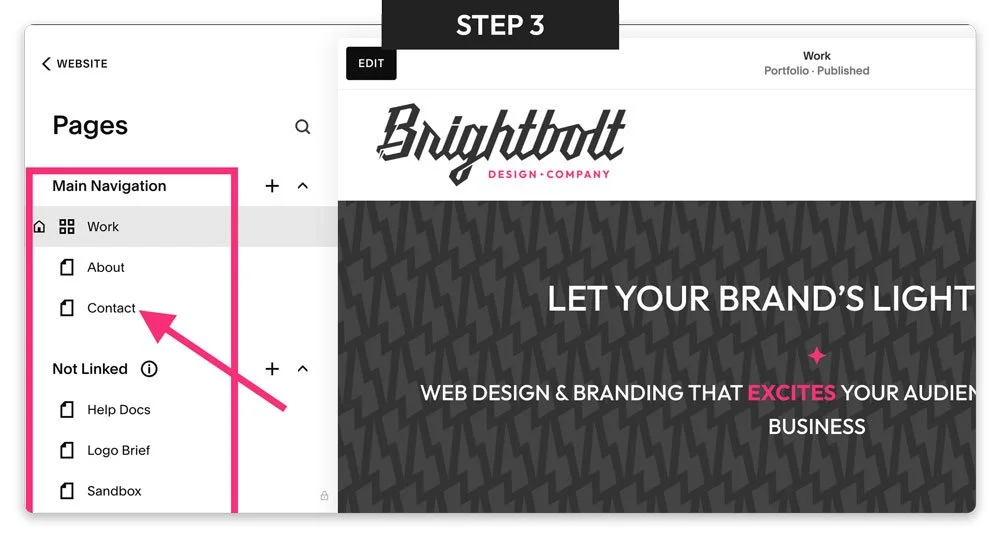
In the left-side menu, under “Website”, click the Pages link.
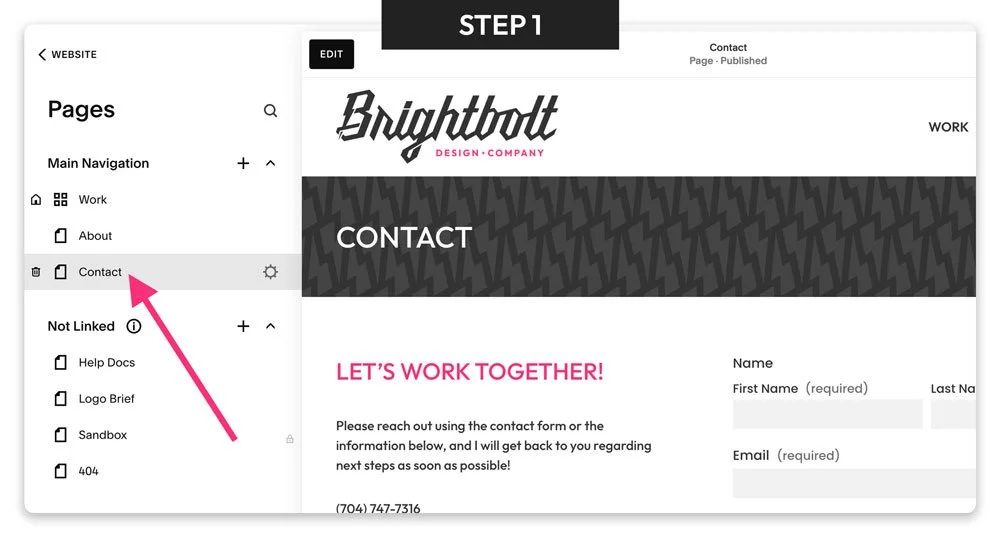
Find the page you want to edit in the site navigation list, and click the page name to open it.
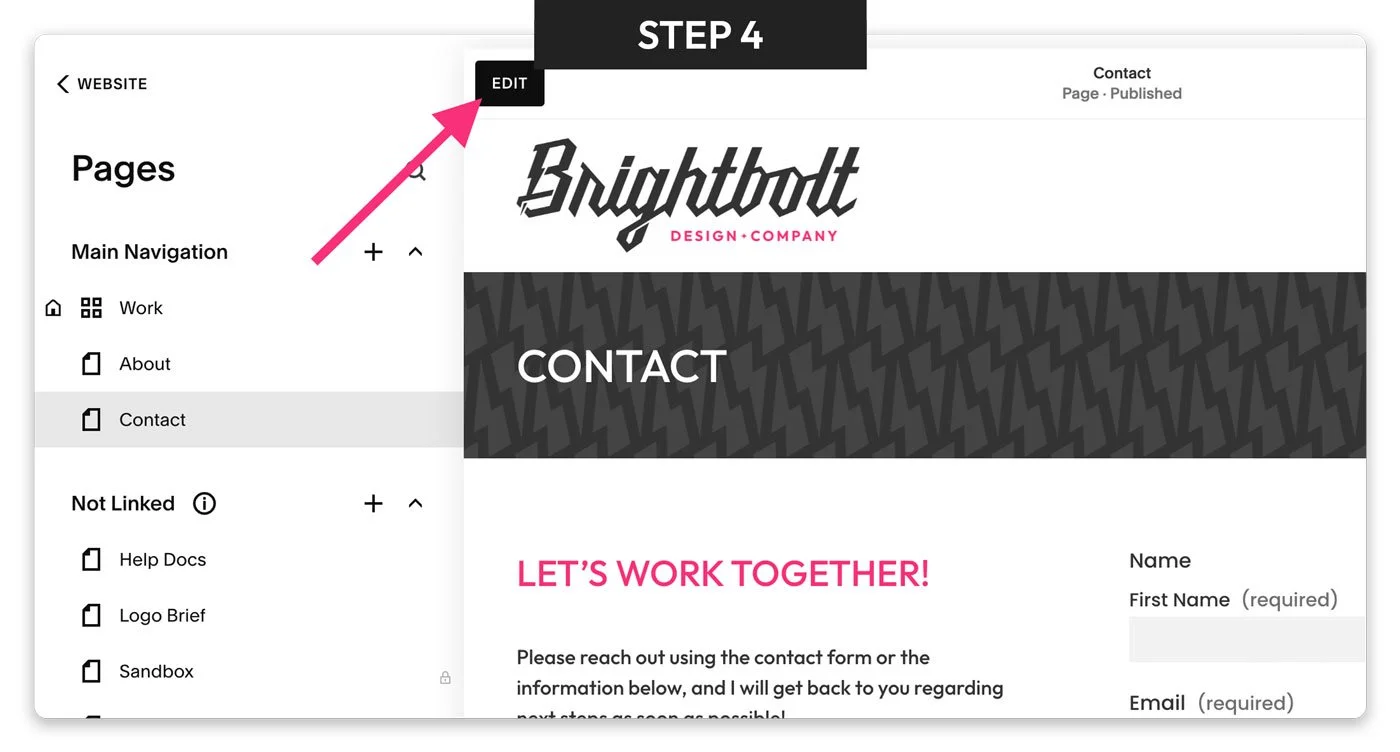
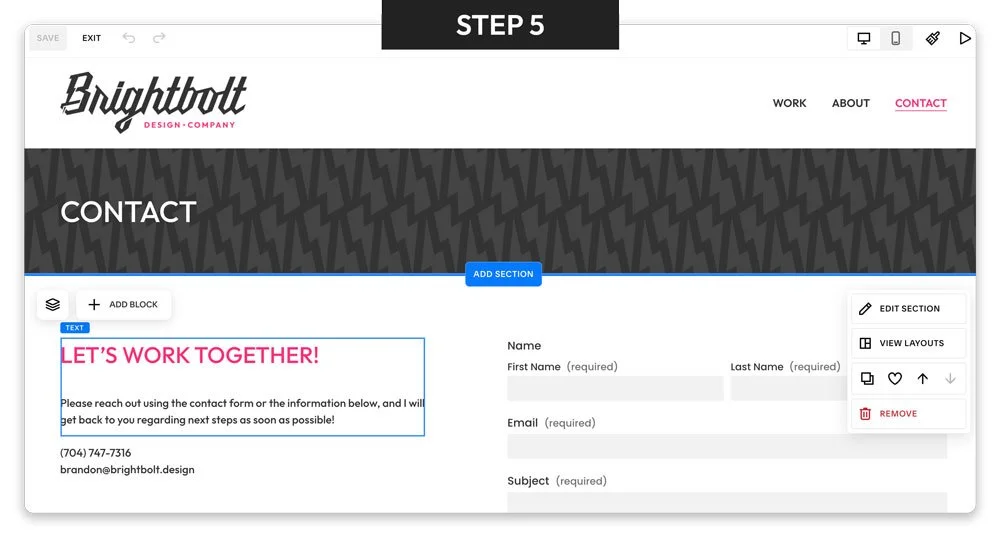
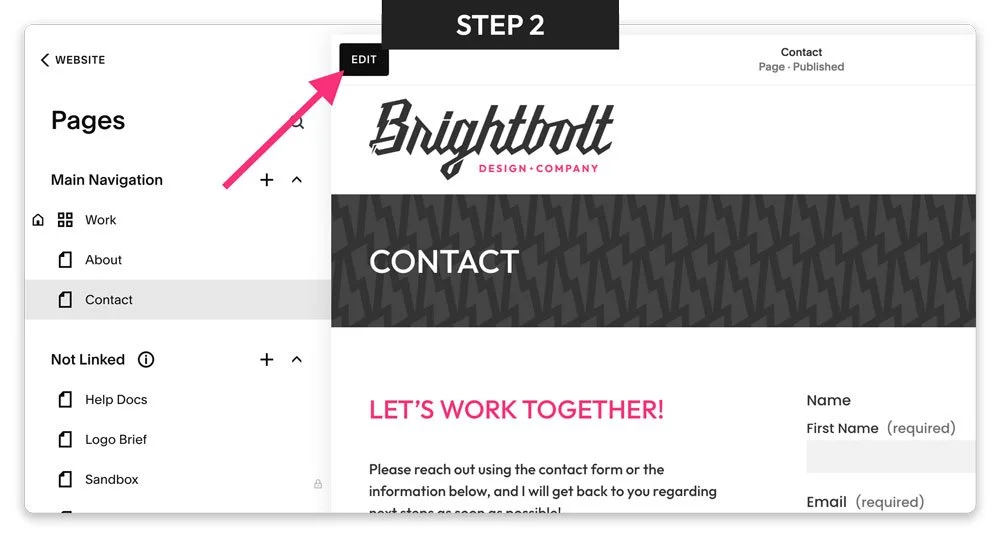
Once the page loads, click Edit in the top-left area of the screen.
You are now inside the page editor and can begin making changes.
TROUBLESHOOTING
Issue: I don’t see the page I need.
Solution: There are two groups of pages - those under “Main Navigation”, and those under “Not Linked” - be sure to check both of these groups for your page.
Issue: I clicked the page, but nothing is editable yet.
Solution: Make sure you click the Edit button at the top left after opening the page.
Edit Text Blocks
STEPS
In your dashboard, select the page you want to update.
Click the Edit button at the top left.
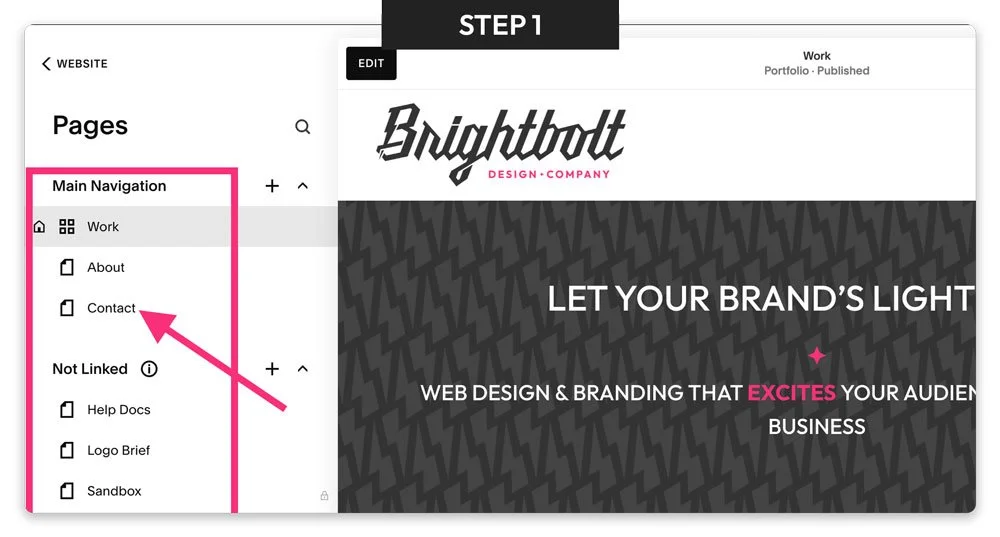
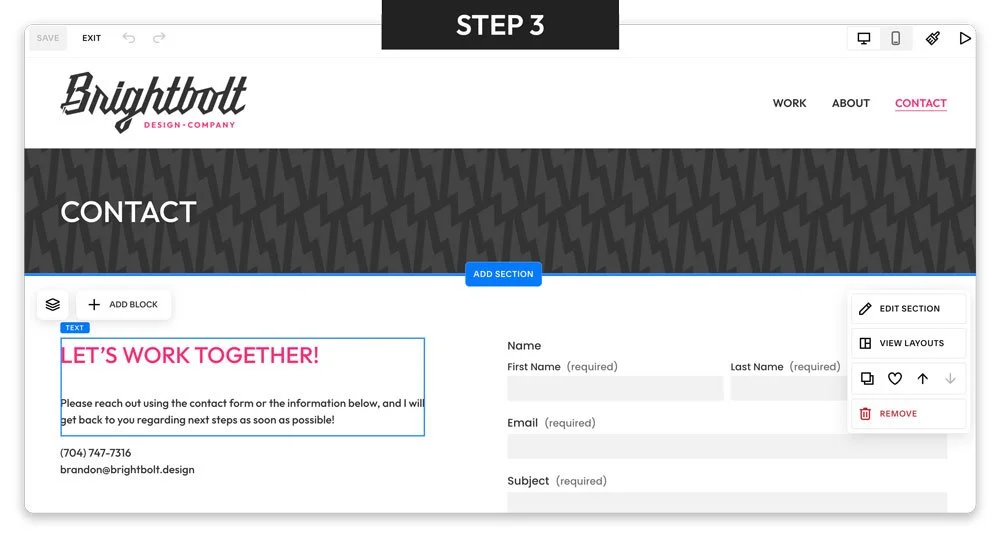
Click directly on the text block that you want to update - this will enter the block into edit mode.
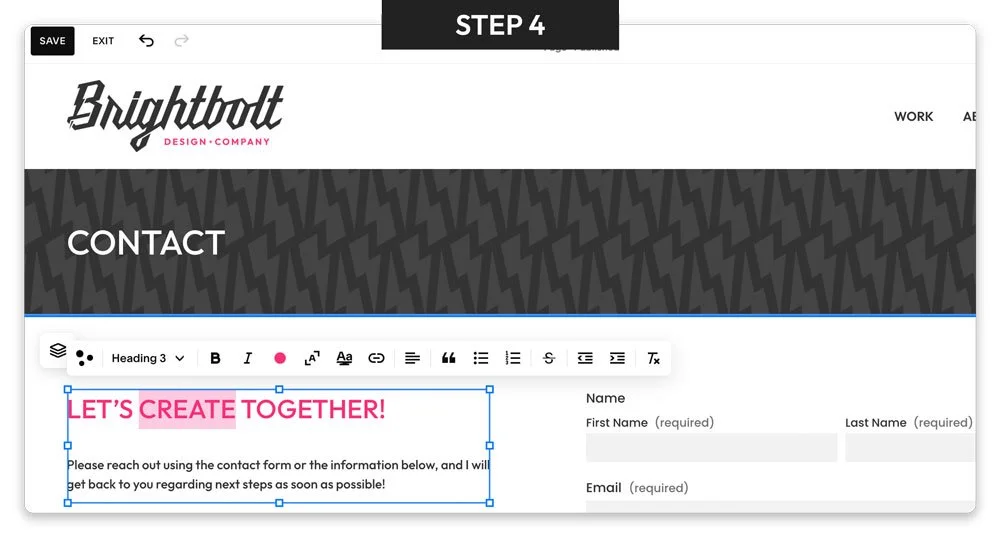
Update the text as needed.
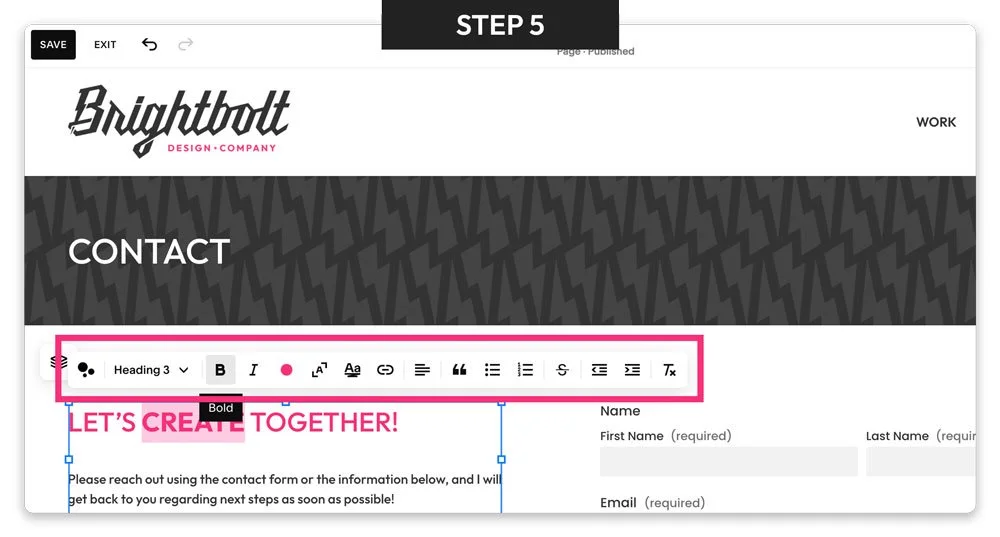
Use the text formatting tools if needed, such as bold, italics, headings, or links.
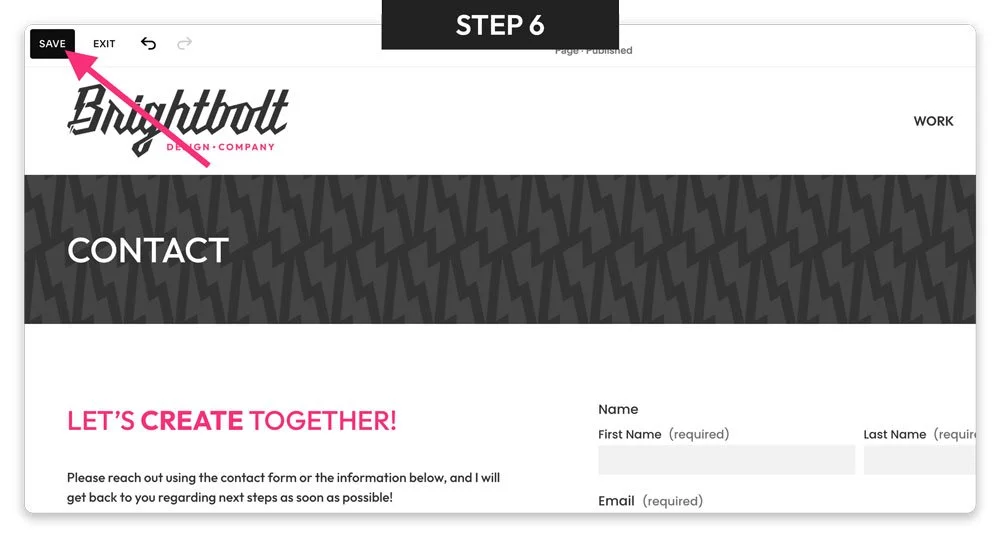
Click Save when you are finished.
TROUBLESHOOTING
Issue: I clicked the text, but I can’t type.
Solution: The page may not be in edit mode yet. Click the Edit button at the top left of the page first.
Issue: My new text doesn’t look the same as other text on the page.
Solution: Make sure you are using the same formatting options. You can click into another text element to see which formatting options are selected in the formatting tool bar, then apply those same options to your new text.
Edit Image Blocks
STEPS
In your dashboard, select the page you want to update.
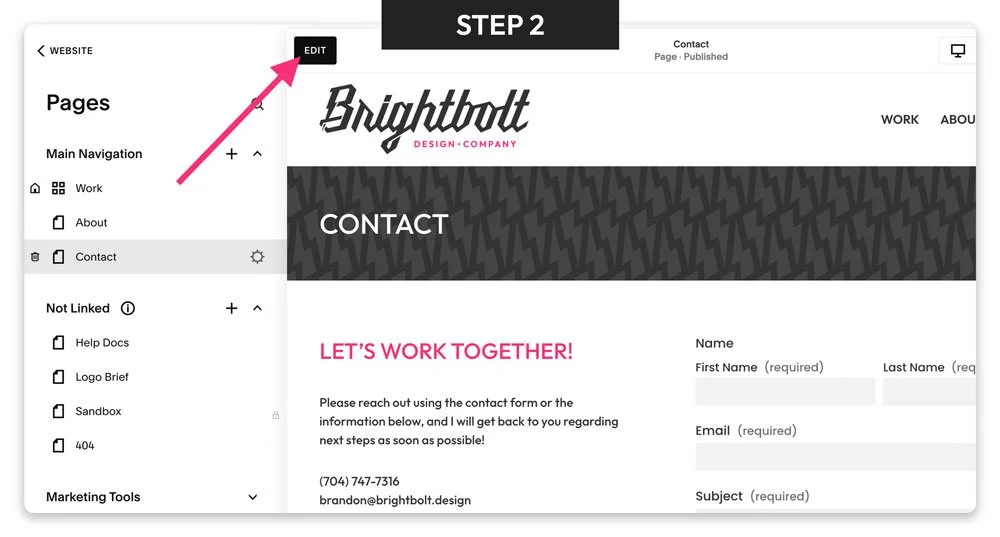
Click the Edit button at the top left.
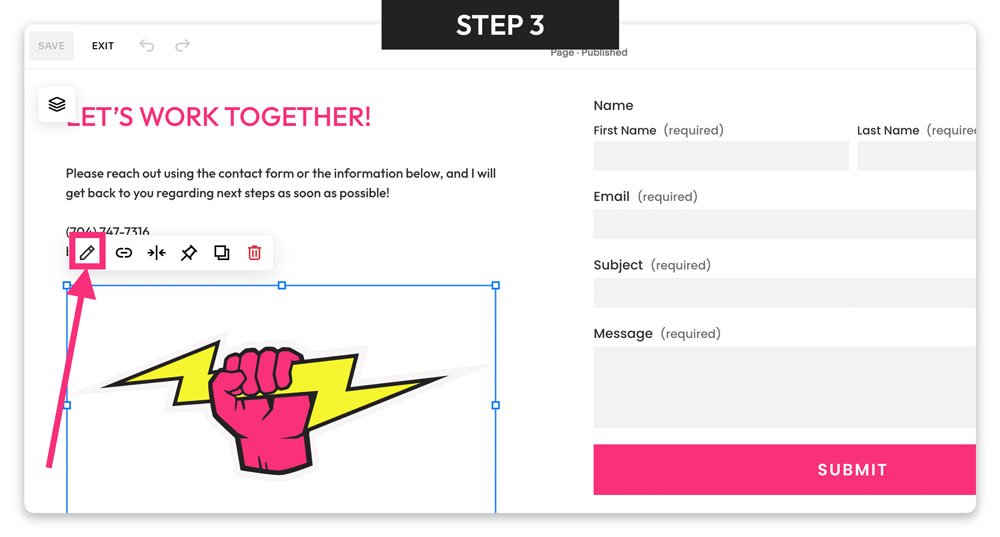
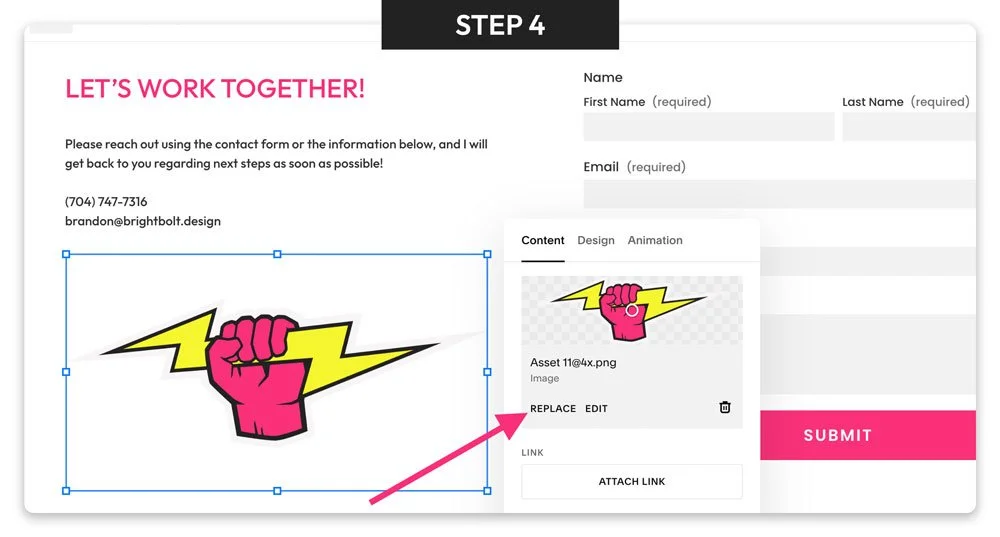
Click the image that you want to change, then click the Edit button in the tool bar that appears (it’s the one that looks like a pencil).
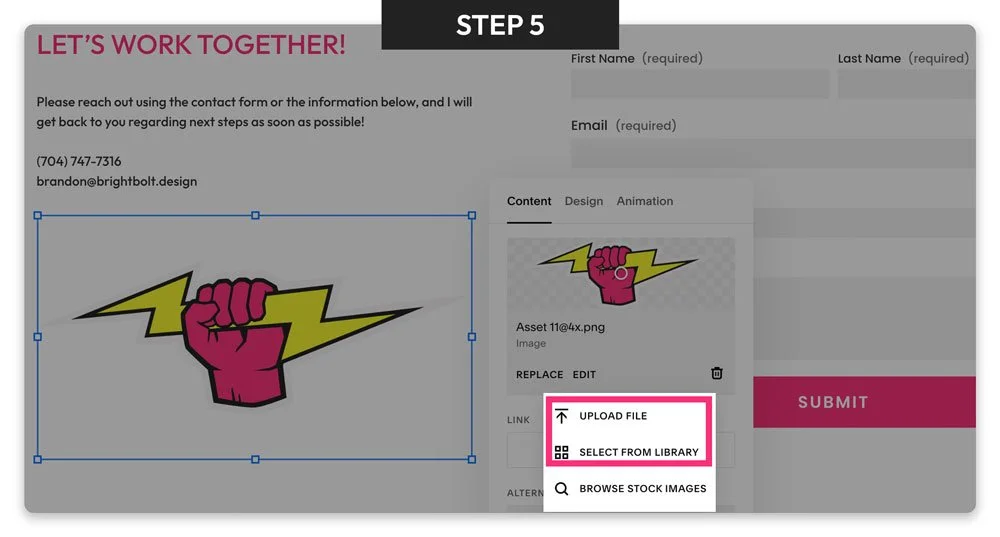
In the box that appears, click the Replace button.
Upload a new image from your computer, or select an existing image from your Squarespace library if you’ve already uploaded the image previously.
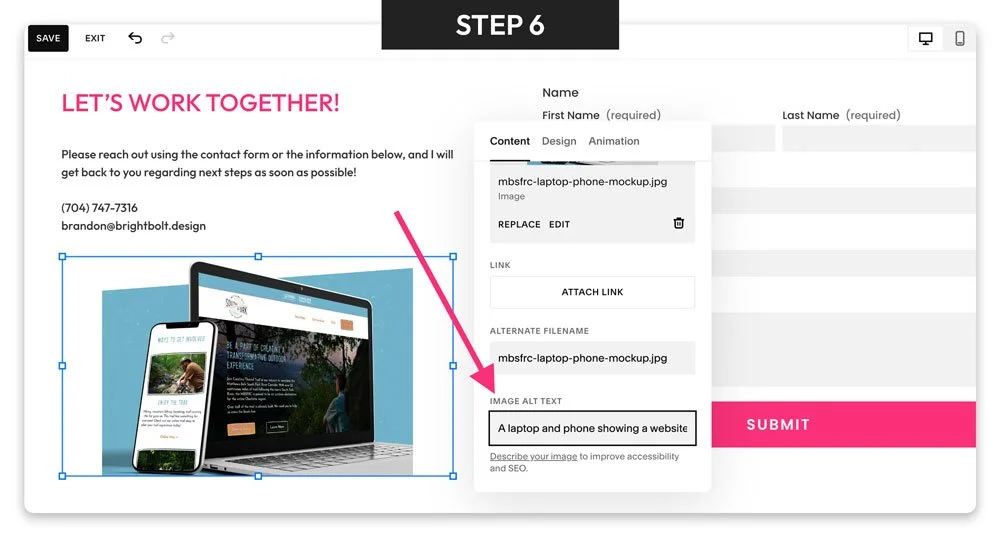
Add alt text that describes the image in plain language. This is beneficial for SEO and accessibility features like screen readers.
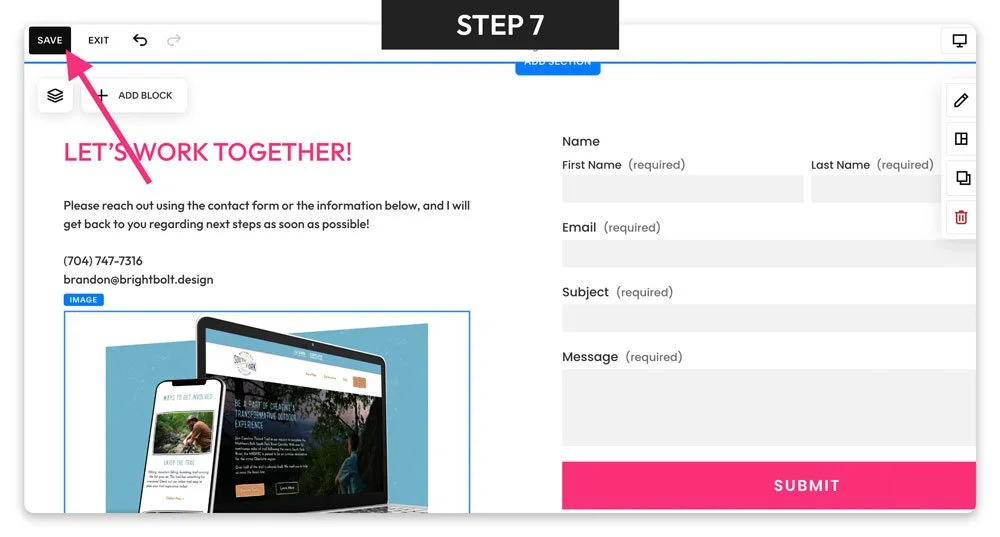
Click Save when you’re finished editing.
TROUBLESHOOTING
Issue: My image looks cropped incorrectly.
Solution: Check the image block settings and adjust the focal point or choose a different image size.
Issue: The image uploaded, but it looks blurry.
Solution: Try using a higher-quality image with larger dimensions.
Add New Content Blocks
STEPS
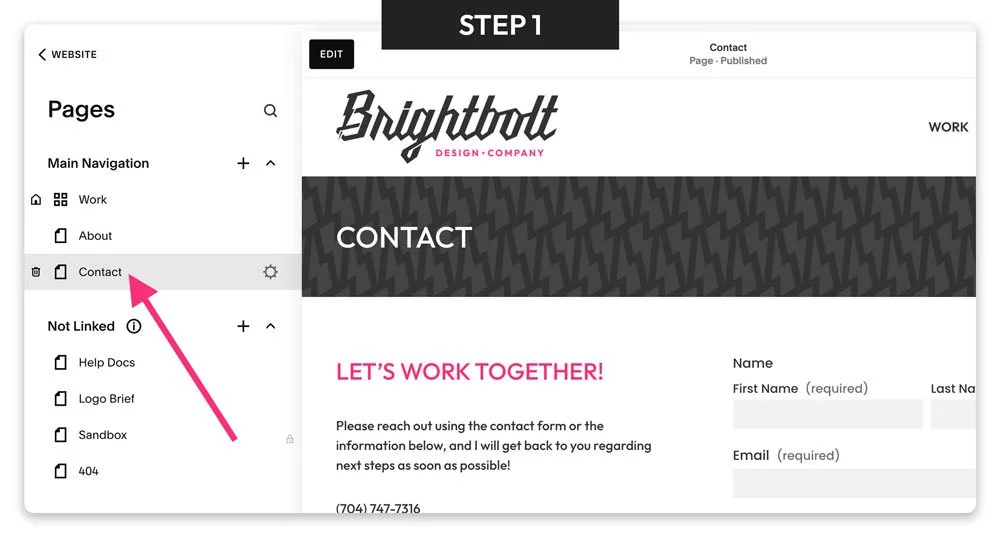
In your dashboard, select the page you want to update.
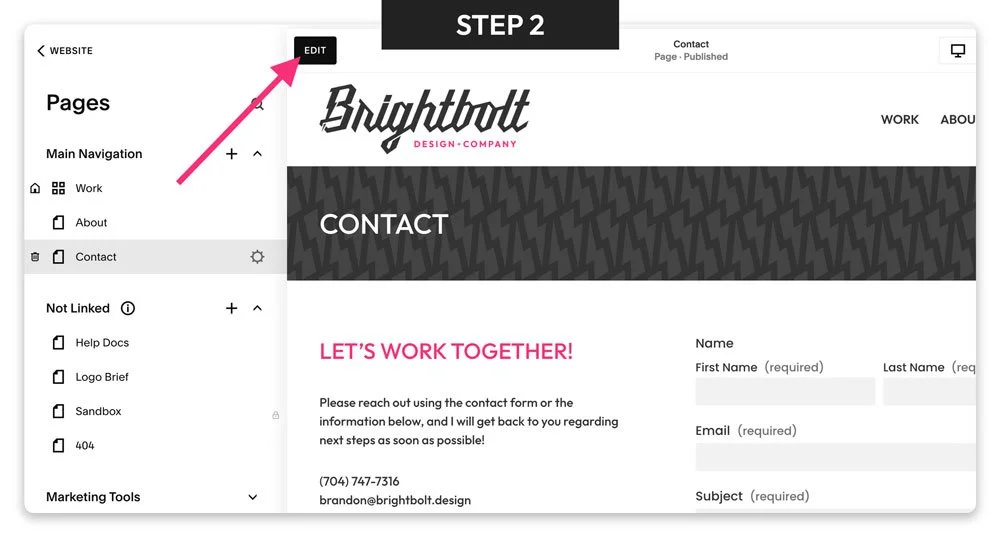
Click the Edit button at the top left.
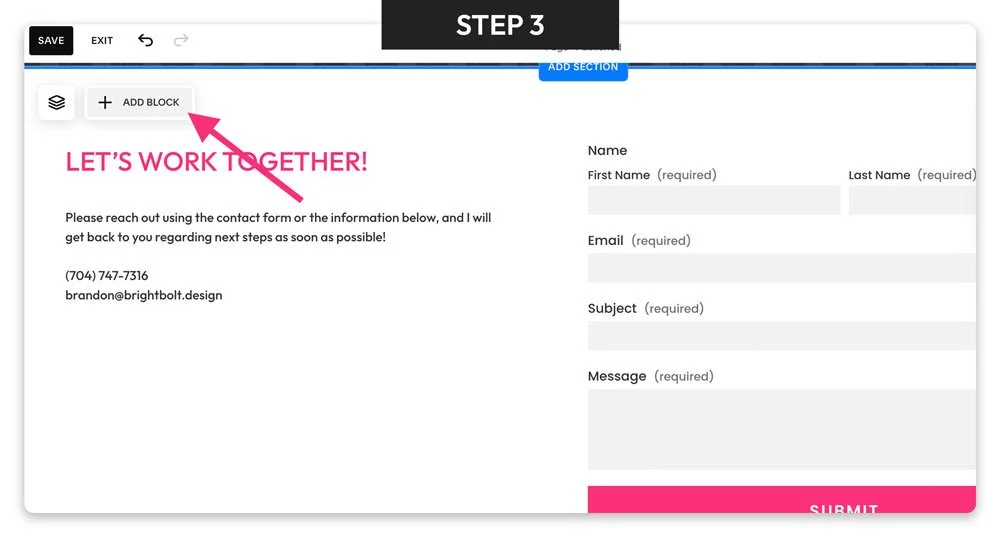
Scroll to the section where you want to add content, and click the “Add Block” button at the top left of the section.
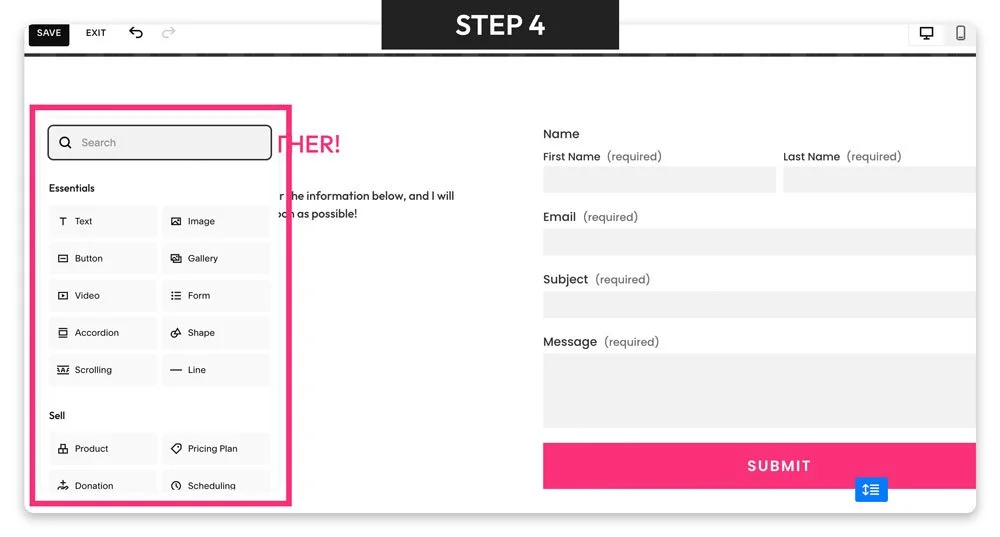
In the box that appears, choose the type of content block you want to add.
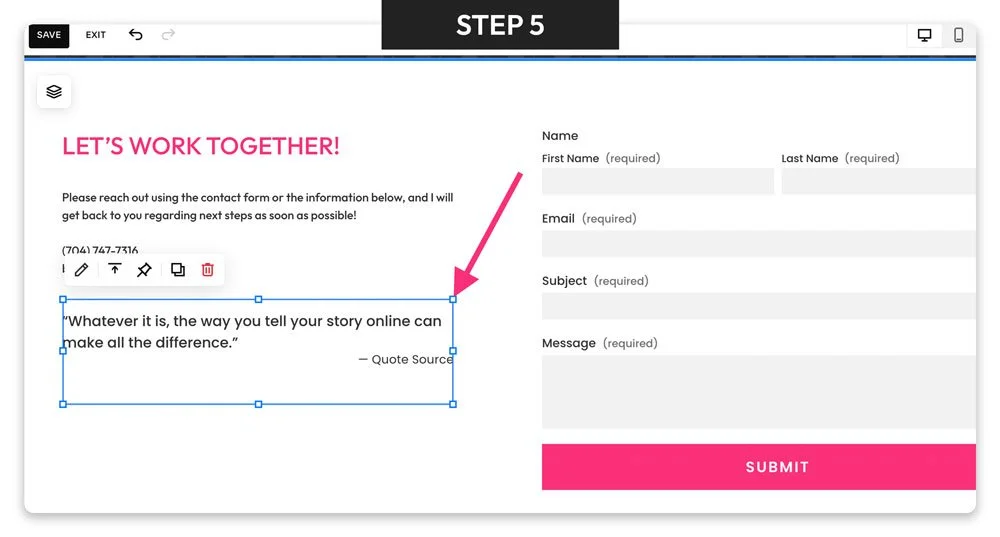
Drag the block to the location where you want it, and use the square handles to make the block larger or smaller.
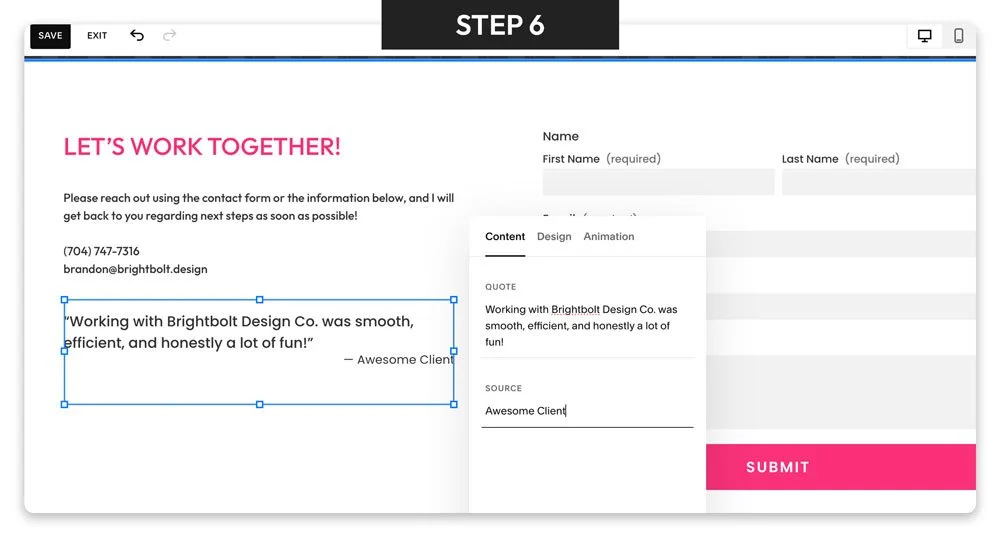
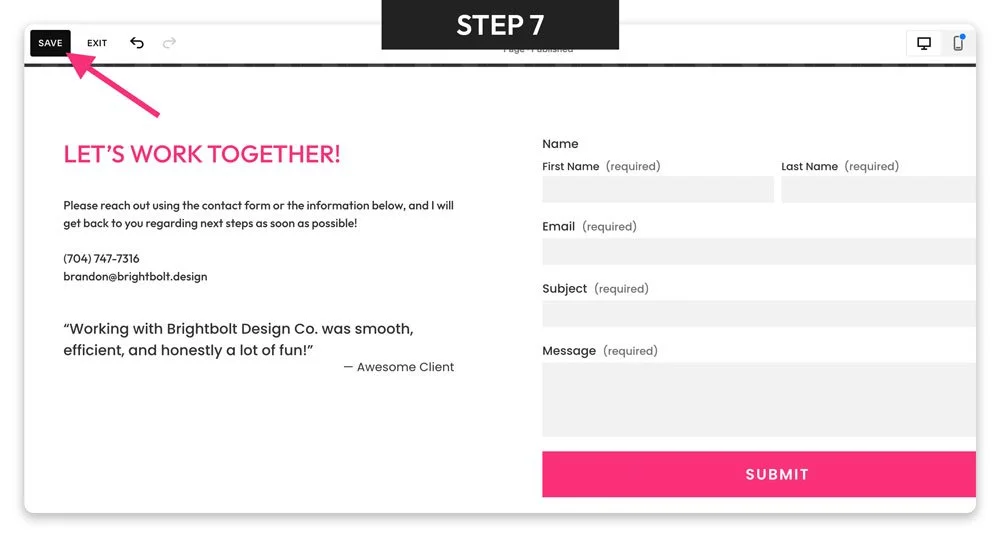
Edit the content using the block-specific tools and settings that are provided. In my example screenshot, I chose a “Quote” block, and edited the quote content and the source.
Note: you may need to double click on the block to open the settings.Click Save when you’re finished editing.
TROUBLESHOOTING
Issue: I don’t see the editing tools for my new content block.
Solution: Double click on the content block to open the editing tools.
Issue: I don’t see a content block that does what I need.
Solution: Squarespace offers a curated selection of default content blocks. If you need to add a specific type of content that doesn’t seem to have an appropriate content block, please reach out to me to discuss your options.